

Field creation with the Embedded Preparation
A Youtrust-hosted page where your own users visually place fields on a Document before activating the Signature Request.
Embedded Preparation
Embedded Preparation is a visual page where your own users place fields (signature, initials, text, and more) on a Document by hand, before activating the Signature Request.
Instead of positioning fields programmatically through the API or through Smart Anchors, your users open the Embedded Preparation page, look at the Document, and put each field where it belongs.
Youtrust hosts and maintains the page for you, and your users reach it through a link, which is all they need to get started. It looks and behaves like the field-placement step of the Youtrust app, kept up to date for you.
What your users can do
In the page, your users work directly on the Signature Request you prepared. They can:
- View the signable Documents: browse, scroll, and zoom. The Documents themselves stay read-only.
- See that Signers exist, with their personal details (email, role, order) kept hidden.
- Place any Youtrust field type, for any Signer on the Signature Request.
- Validate when they are done, which shows them a confirmation screen
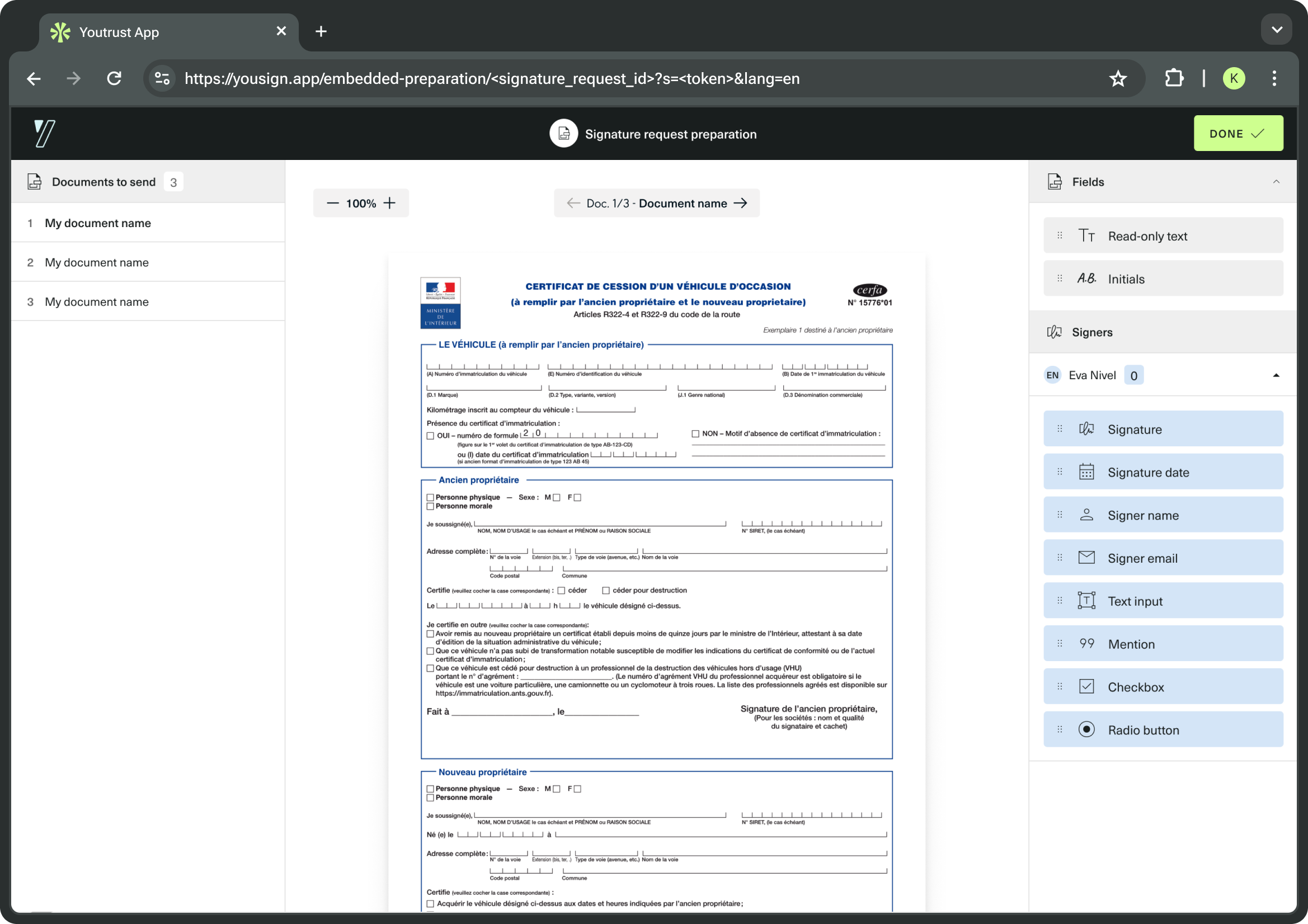
Every change is saved automatically, so there is no save button. Approvers, Signer Document Requests, and Document visibility settings stay out of the page.
How it works

- Create a Signature Request in
draftstatus. - Add at least one signable Document and one Signer.
- Generate an Embedded Preparation link for the Signature Request.
- Share the link with the person preparing the Signature Request, or load it in an iFrame inside your product.
- They place the fields on the Documents. Every change is saved automatically.
- Activate the Signature Request through the API when you are ready to start signing.
The Embedded Preparation page never activates the Signature Request. Activation stays on your side, through the API.
How Signature Requests with Smart Anchors are displayed
If the Signature Request contains Smart Anchors, they appear on the Document as soon as the page loads, alongside any Fields already placed or placed by your users.
What you see here is a preview of the Field each Smart Anchor will become. Smart Anchors are only converted into actual Fields when the Signature Request is activated. See our documentation on Smart Anchors for more information.
Smart Anchors fields are identified by the Pre-placed tag.
- Smart Anchor fields cannot be moved, resized, edited, deleted, or duplicated. Your users can only place new Fields around or on top of them.
- Each Smart Anchor field takes the colour assigned to its Signer, shown at 50% opacity so the Document stays readable underneath.
- Smart Anchor is rendered exactly like the equivalent Field would look if placed manually.
- Smart Anchors sit on the lowest layer. A Field placed on top of a Smart Anchor stays fully clickable.
- A Smart Anchor referencing a Signer not yet added to the Signature Request (for example, an anchor for a third Signer on a Signature Request that only has two) is not displayed. This is not a blocker: the Embedded Preparation link can still be generated, and the Signature Request can still be activated.
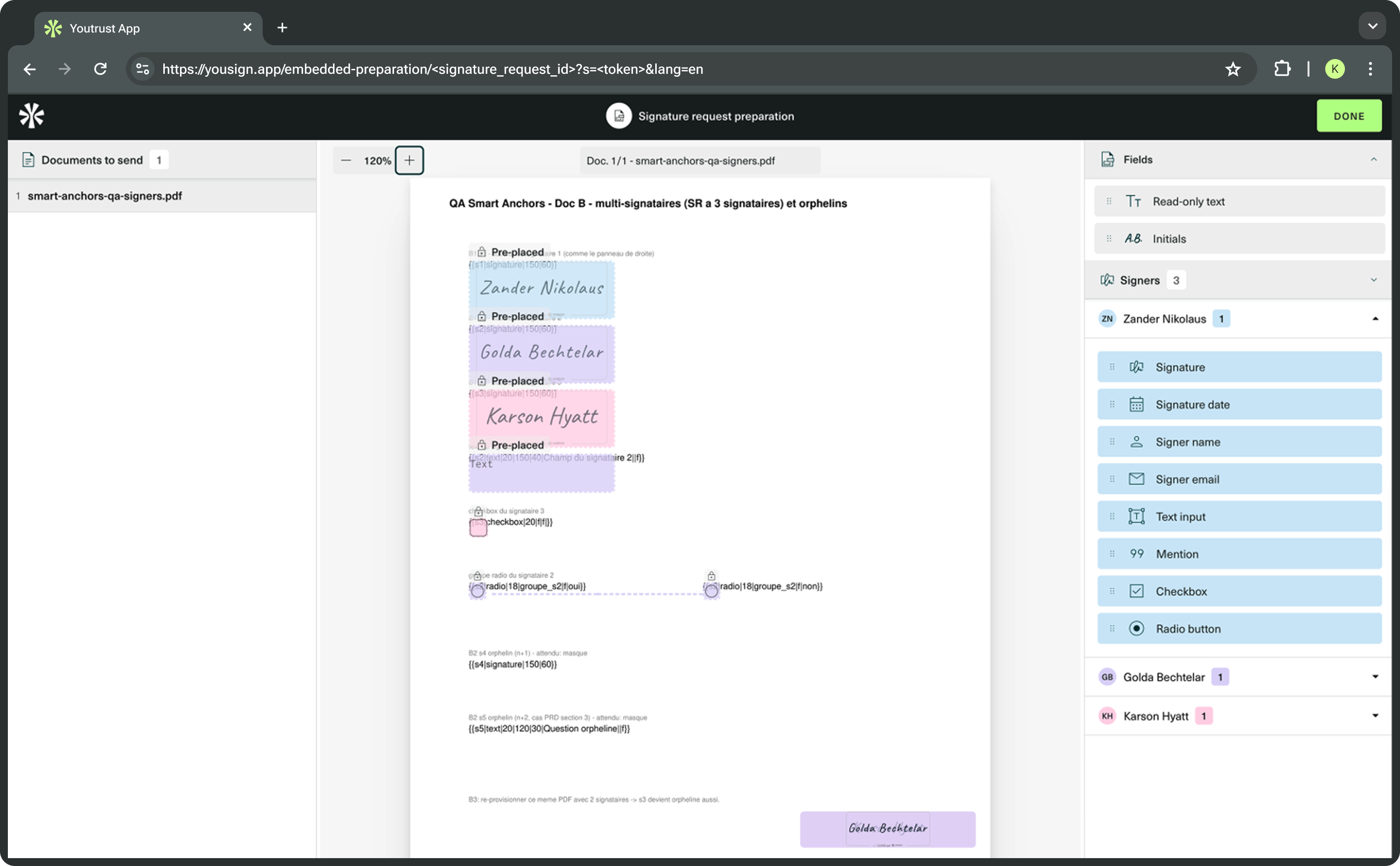
Smart Anchor fields are locked and colour-coded by Signer. Smart Anchors referencing a Signer not yet added to the Signature Request (s4, s5) stay as plain text and are not displayed as Fields.
Smart Anchors cannot be created or edited from the Embedded Preparation. They stay defined upstream, through the uploaded Document.
Customise navigation and appearance
Using Custom Experience, it is possible to customise the apperance and the navigation of the Embedded Preparation.
Show or hide the navigation buttons
The Embedded Preparation shows a Done button by default, and can also show a Back button.
Buttons display are controlled by the Custom Experience associated with the Signature Request.
Each button display is controlled individually and the navigation can be hidden as well.
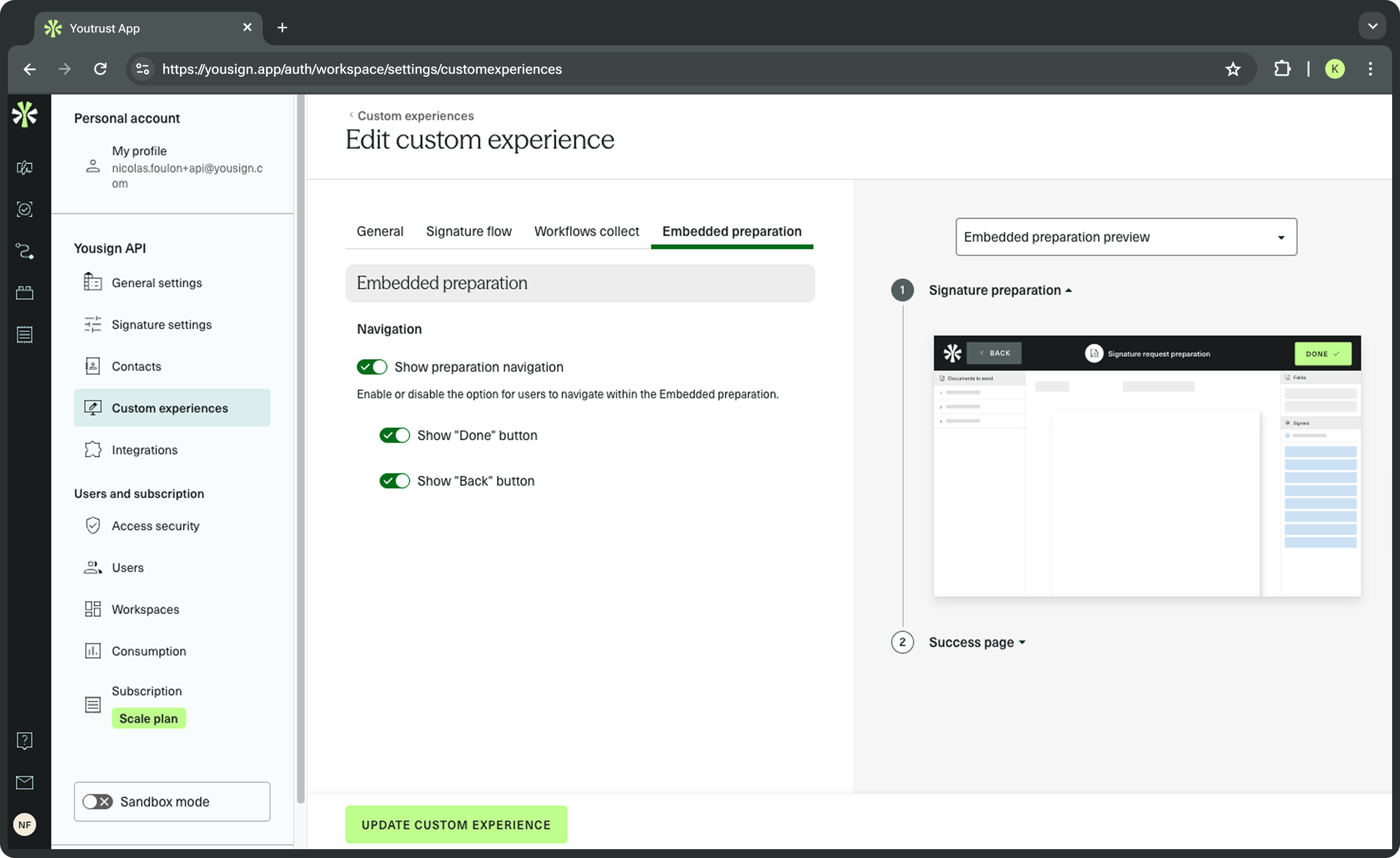
Custom Experiences can be edited through the API or the Youtrust app.
Redirect your user when a button is clicked
Once a user clicked on the back or next button, it can be redirected to the URL of your choice.
To manage URLs, you have to define the embedded_preparation.redirect_urls on the Signature Request, when you create or update it:
{
  "embedded_preparation": {
    "redirect_urls": {
      "done": "https://your-app.com/done",
      "back": "https://your-app.com/previous-step"
    }
  }
}
Rules applying:
- If a
doneURL is set, your user is sent to it when they click Done. Otherwise they see the default success screen. - If a
backURL is set, your user is sent to it when they click Back. If no URL is set, nothing happens on click.
In an iFrame, both buttons also emit a postMessage event before navigating. See iFrame Embedded Preparation for the full list of events and how to use them.
Appearance
Navigation background, buttons and logos appearance depend on the Custom Experience associated with the Signature Request.
Generate an Embedded Preparation link
When you are ready to have someone prepare a Signature Request, you generate an Embedded Preparation link.
It works in both the sandbox and production environments.
An Embedded Preparation link can be generated only when the Signature Request meets all of these conditions:
- It was created through the API.
- It is in
draftstatus. - It has at least one signable Document and one Signer.
- It contains no placeholder Signer or Document.
- It contains no Document above the size limit.
If a condition is not met, the API returns an error that explains which rule failed.
If the SR contains a locked Document uploaded via the Application without a password provided, the Document will not be displayed, and an error will show in the interface.
You can set the language of the page with the locale parameter. Accepted values: de, en, es, fr, it, nl, pl. It defaults to your organisation's language.
The endpoint returns a single URL. Here is an example of the link you get back:
{
  "url": "https://yousign.app/embedded-preparation/<signature_request_id>?s=<token>&lang=fr"
}
An Embedded Preparation link is short-lived: it expires 10 minutes after it is generated.
You can call the endpoint several times for the same Signature Request. Each call returns a new, independent link.
The Embedded Preparation link is meant for the person or organisation preparing the Signature Request. Keep it on your side: the link should not be shared with Signers, Approvers, and other recipients.
Open it in a tab or an iFrame
You can open an Embedded Preparation link in a browser tab, or embed it in an iFrame inside your product to keep your users in context. For iFraming, be sure to configure your iFraming policy based on your needs.
Updated about 2 months ago