

Custom Experience
Learn how to set up a Custome Experience and use it in your signing flow
What is a Custom Experience?
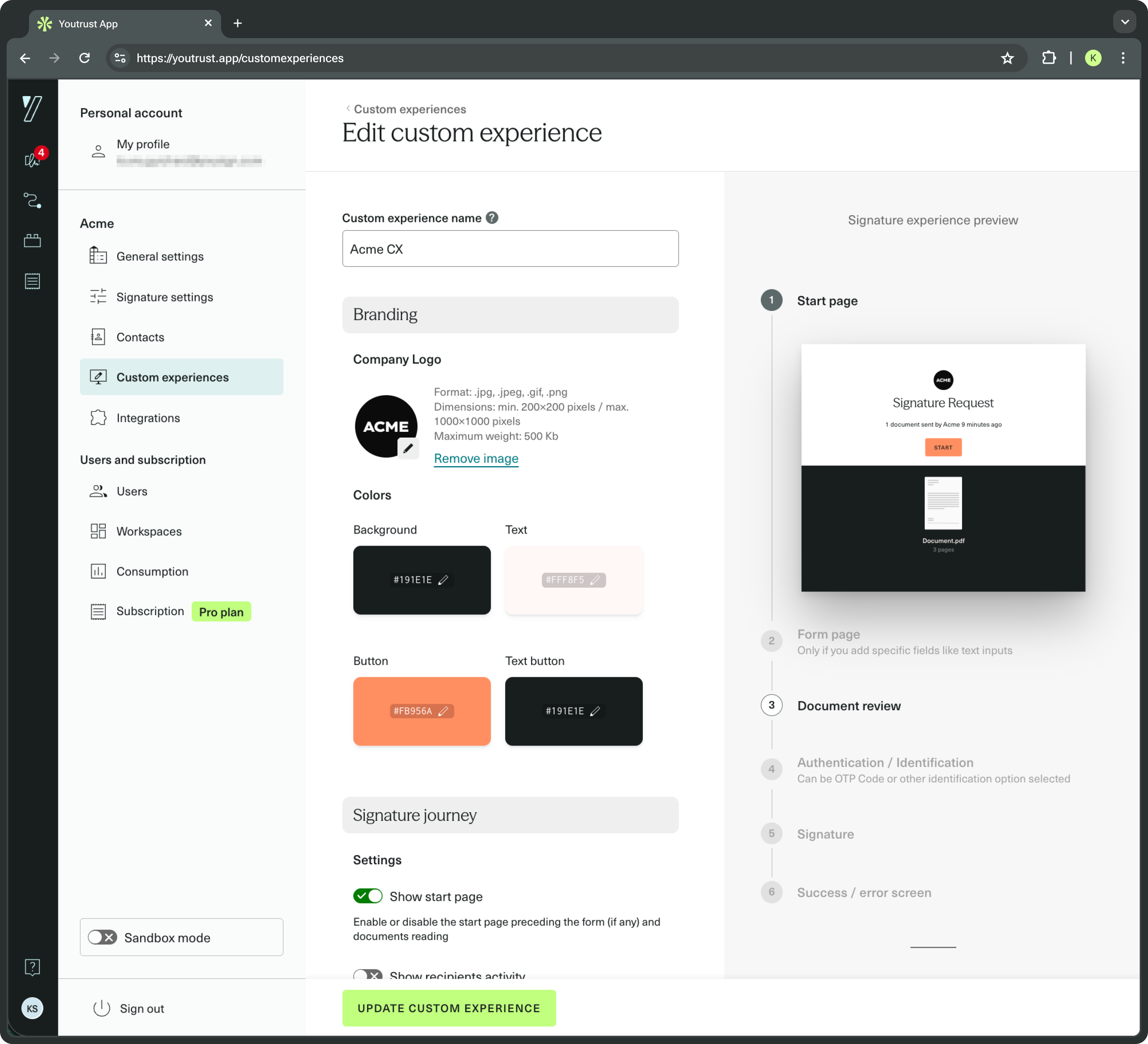
You can customize the look and feel of your signing experience with the Custom Experience feature.
To personalize the signature process and adapt it to your brand identity, you can:
- Customize the signature experience appearance (logo, colours, start screen, list of the Signature Request recipients, left panel).
- Personalize the Signer's journey with redirect URLs for signature success, error, or decline.
- Manage email notifications triggered when an event occurs on the Signature Request (e.g. "Request is approved", "Request is rejected").
- Manage email settings (e.g. show the due date, the introduction, your logo, or the sender).
You can set up a Custom Experience from the application and from the API.
Why use a Custom Experience
Signers act faster on a document that visibly comes from you. A Custom Experience puts your brand on the signing screen with no front-end work on your side:
- Remove the doubt that stalls a signature: signers who recognise your logo and colours are less likely to abandon the request or report it as phishing.
- Keep control of what happens after signing: send Signers back to your own success, error, or decline page instead of a generic Youtrust screen.
- Send only the emails you want: Youtrust sends all notifications by default. Disable any of them and keep your own transactional emails as the single voice.
- Give each brand its own look: scope a Custom Experience to a Workspace with
workspace_idto serve several brands or subsidiaries from one Organization.
Typical use cases
- A fintech onboarding funnel that must look like the product the user just signed up for.
- A marketplace whose sellers each need their own branded contract flow, one Custom Experience per Workspace.
- A team that already sends its own transactional emails and needs Youtrust to stay silent, with
disabled_notifications.
Custom Experience scope
A Custom Experience is scoped either to your entire Organization or to a single Workspace.
- Organization scope: all Users and API keys can view, apply and manage the Custom Experience. This is the default scope.
- Workspace scope: only Users and API keys with access to that Workspace can view, manage and apply the Custom Experience.
You set the scope with the workspace_id field when you create or update a Custom Experience:
- Leave
workspace_idempty (ornull) to scope the Custom Experience to the Organization. - Set
workspace_idto a Workspace ID to scope the Custom Experience to that Workspace.
Apply a workspace-scoped Custom Experience
A workspace-scoped Custom Experience can only be applied to a resource in the same Workspace:
- A Signature Request in the same Workspace.
- A Template scoped to the organization, or the same Workspace.
- A Workflow Template scoped to the organization, or the same Workspace.
An organization-scoped Custom Experience can be applied to any resource, in any Workspace.
If you apply a workspace-scoped Custom Experience to a res
Set up a Custom Experience in the application
A Custom Experience can be created on the Application and requires Admin or Owner access.
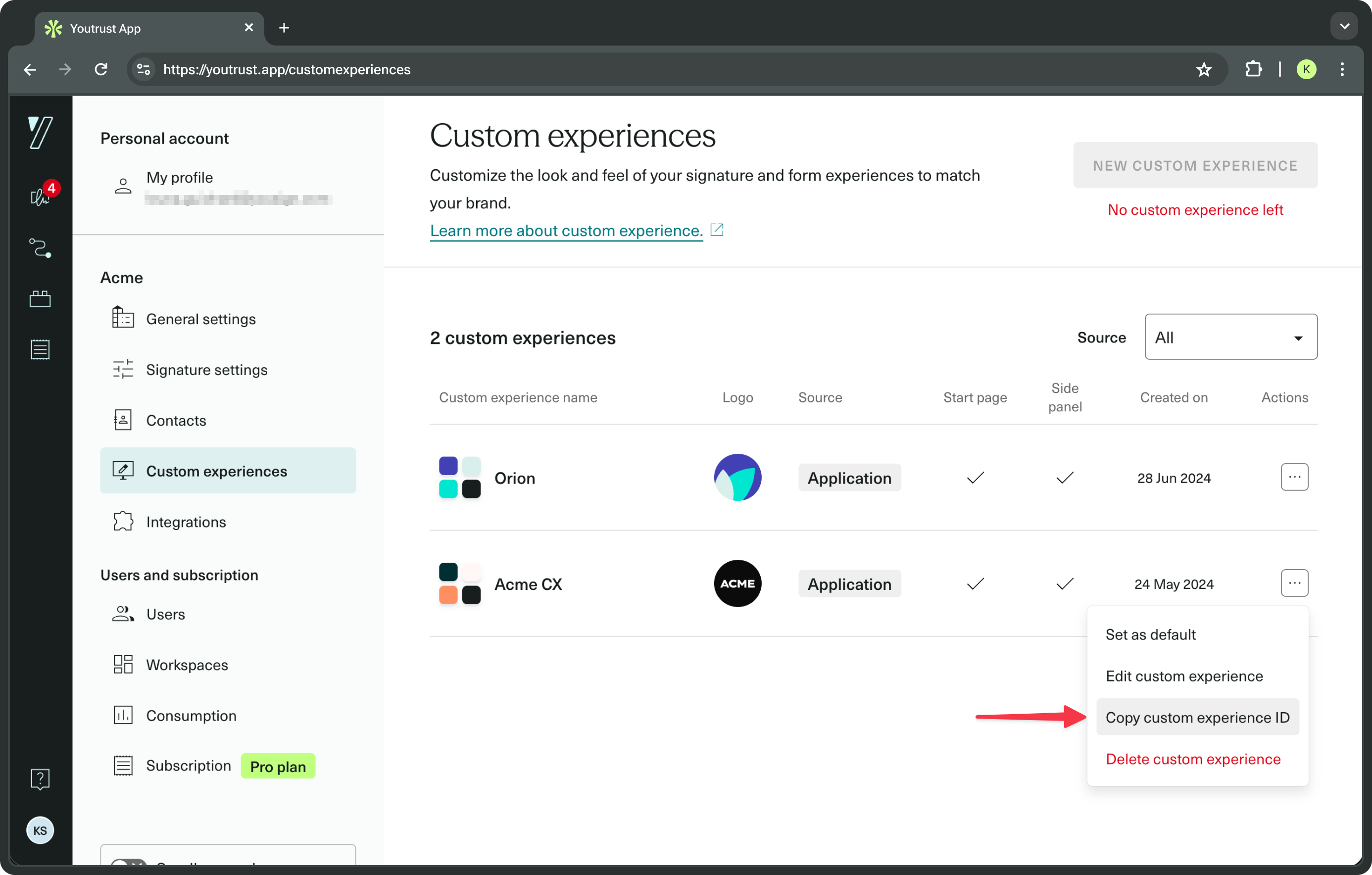
Once the Custom Experience is created, you can retrieve its id using the dedicated menu item as shown below.
Associate the Custom Experience to a Signature Request
Once the Custom Experience is created and the id retrieved, you can use it to personalize a Signature Request.
To do so, set the custom_experience_id parameter to the customExperienceId when you initiate the Signature Request.
The Custom Experience and the Signature Request must be in the same environment. A Sandbox Custom Experience cannot be applied to a Production Signature Request, and vice versa.
Related guide: Initiate a new Signature Request
{
    "name": "The name of your Signature Request",
    "delivery_mode": "email",
    "timezone": "Europe/Paris",
    "custom_experience_id": "{{customExperienceId}}"
}
Set up a Custom Experience from the API
Create a Custom Experience
Related guide: Create a Custom Experience
POST /custom_experiences
{
  "name": "My first custom experience",
  "workspace_id": "03b573fe-4640-4ee2-8d3c-0f64e105b66e",
  "landing_page_disabled": true,
  "side_panel_disabled": false,
  "text_color": "#420023",
  "background_color": "#420023",
  "button_color": "#420023",
  "text_button_color": "#420023",
  "disabled_notifications": [
    "approver.notified",
    "approver.approved",
    "approver.rejected",
    "approver.canceled",
    "approver.declined",
    "approver.expiration_date_reminder",
    "approver.expiration_date_updated",

    "follower.approved",
    "follower.canceled",
    "follower.completed",
    "follower.expired",
    "follower.rejected",
    "follower.activated",
    "follower.signed",
    "follower.declined",

    "sender.approved",
    "sender.canceled",
    "sender.completed",
    "sender.rejected",
    "sender.signed",
    "sender.declined",

    "signer.expiration_date_reminder",
    "signer.canceled",
    "signer.completed",
    "signer.signed",
    "signer.expiration_date_updated",
    "signer.signature_requested",
    "signer.declined"
  ],
  "email_logo_disabled": true,
  "email_header_text_disabled": true,
  "email_footer_signature_disabled": true,
  "email_expiration_text_disabled": true,
  "recipients_activity_disabled": true,
  "download_documents_disabled": false,
  "document_navigation_disabled": true,
  "redirect_urls": {
    "success": "https://www.example.com/success",
    "error": "https://www.example.com/error",
    "decline": "https://www.example.com/decline"
  }
}
{
"id": "5e5d8cc7-91b7-4866-bc4e-a9a2c874a848",
"name": "My first custom experience",
"landing_page_disabled": true,
"side_panel_disabled": false,
"background_color": "#420023",
"button_color": "#420023",
"text_color": "#420023",
"text_button_color": "#420023",
"redirect_urls": {
"success": "https://www.example.com/success",
"error": "https://www.example.com/error",
"decline": "https://www.example.com/decline"
},
"disabled_notifications": [
"approver.notified",
"approver.approved",
"approver.rejected",
"approver.canceled",
"approver.expiration_date_reminder",
"approver.expiration_date_updated",
"approver.declined",
"follower.approved",
"follower.canceled",
"follower.completed",
"follower.expired",
"follower.rejected",
"follower.activated",
"follower.signed",
"follower.declined",
"sender.approved",
"sender.canceled",
"sender.completed",
"sender.rejected",
"sender.signed",
"sender.declined",
"signer.expiration_date_reminder",
"signer.canceled",
"signer.completed",
"signer.signed",
"signer.expiration_date_updated",
"signer.declined"
],
"email_header_text_disabled": false,
"email_expiration_text_disabled": true,
"email_logo_disabled": true,
"recipients_activity_disabled": true,
"download_documents_disabled": false,
"logo": null,
"source": "public_api",
"is_default": false,
"workspace_id": "03b573fe-4640-4ee2-8d3c-0f64e105b66e",
"created_at": "2023-02-20T08:33:58+00:00"
}Choose which notifications should be sent
All notifications are sent by default, but you can choose to disable some of them with the disabled_notications entry. Here is the list of all notifications you can act on:
| Notification name | Description |
|---|---|
| approver.notified | The Approver is notified that the Signature Request has been sent |
| approver.approved | The Approver is notified that the Signature Request has been approved |
| approver.rejected | The Approver is notified that the Signature Request has been rejected |
| approver.cancelled | The Approver is notified that the Signature Request has been cancelled |
| approver.declined | The Approver is notified that the Signature Request has been declined |
| approver.expiration_date_reminder | The Approver is notified that the Signature Request expires soon |
| approver.expiration_date_updated | The Approver is notified that the Signature Request expiration date has changed or has been reactivated |
| follower.approved | The Follower is notified that the Signature Request has been approved |
| follower.rejected | The Follower is notified that the Signature Request has been rejected |
| follower.activated | The Follower is notified that the Signature Request has been activated |
| follower.signed | The Follower is notified that a Signer just signed the Signature Request |
| follower.completed | The Follower is notified that the Signature Request is completed which means that all Signers signed |
| follower.cancelled | The Follower is notified that the Signature Request has been cancelled |
| follower.expired | The Follower is notified that the Signature Request has expired |
| follower.declined | The Follower is notified that the Signature Request has been declined |
| sender.approved | The Sender is notified that the Signature Request has been approved |
| sender.rejected | The Sender is notified that the Signature Request has been rejected |
| sender.signed | The Sender is notified that a Signer just signed the Signature Request |
| sender.completed | The Sender is notified that all Signers signed the Signature Request |
| sender.cancelled | The Sender is notified that the Signature Request has been cancelled |
| sender.declined | The Sender is notified that the Signature Request has been declined |
| signer.signed | The Signer is notified that a Signer just signed the Signature Request |
| signer.completed | The Signer is notified that all Signers signed the Signature Request |
| signer.canceled | The Signer is notified that the Signature Request is canceled |
| signer.expiration_date_reminder | The Signer is notified that the Signature Request expires soon |
| signer.expiration_date_updated | The Signer is notified that the Signature Request expiration date has changed or has been reactivated |
| signer.signature_requested | The Signer is invited to sign a document with a signature link |
| signer.declined | The Signer is notified that the Signature Request has been declined |
Custom Redirect URL
You can set custom URLs to which the signer will be redirected at the end of the signing flow.
- Redirect URL on success: redirect the signer to a page of your choice when they successfully complete the signature
- Redirect URL on error: redirect the signer to a page of your choice in case of error or signature failure
- Redirect URL on signature decline: redirect the signer to a page of your choice if they decline the signature
Custom Redirect URLs are not available during the Trial period
Add or replace a Custom Experience logo
POST /custom_experiences/{customExperienceId}/logo (see API reference)
curl --location --request POST '{baseUrl}/custom_experiences/{customExperienceId}/logo' \
--header 'Authorization: Bearer {apiKey}' \
--form 'file=@"/path/to/the/logo.png"'
Accepted file requirements:
- Format : .jpg, .jpeg, .gif, .png
- Dimensions : min. 200x200 pixels / max. 1000x1000 pixels
- Maximum weight: 500 Kb.
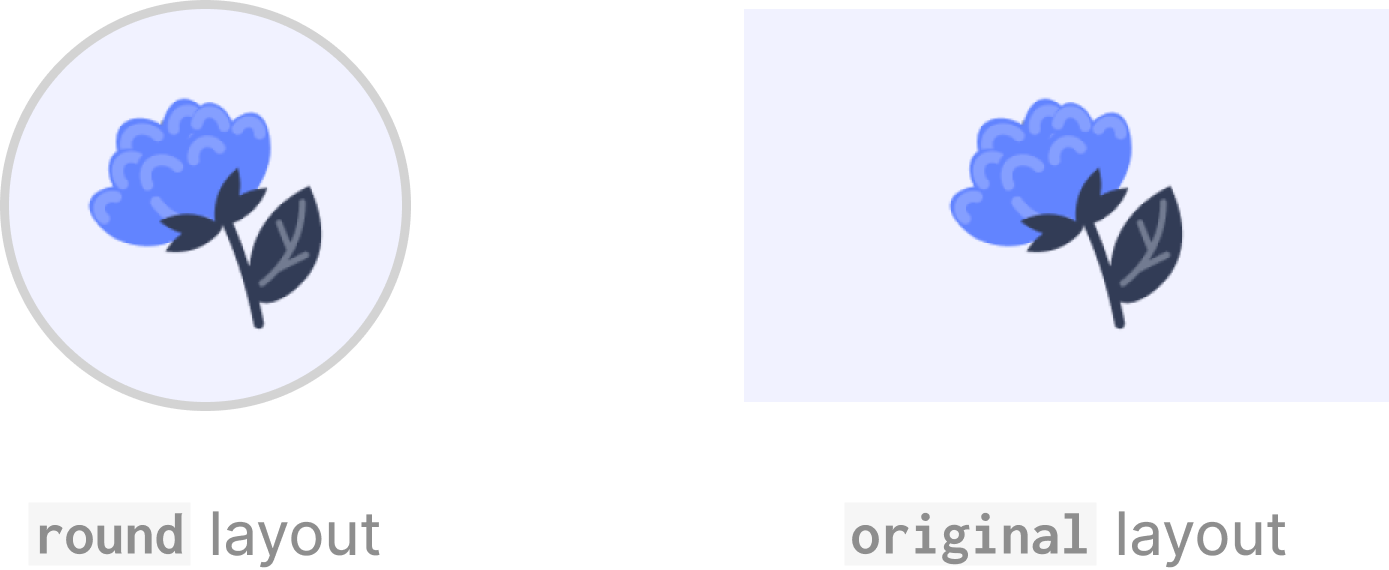
You can choose how your logo will be displayed by using the logo_layout parameter in the Create a Custom Experience and Update a Custom Experience endpoints.
Two layout modes are available:
round: the logo will be framed inside a circle (default layout)original: the logo will be displayed in its original shape and ratio
Fetch the logo url
GET /custom_experiences/{customExperienceId}
{
  "id": "5e5d8cc7-91b7-4866-bc4e-a9a2c874a848",
  "name": "My first custom experience",
  "landing_page_disabled": true,
  "side_panel_disabled": false,
  "background_color": "#420023",
  "button_color": "#420023",
  "text_color": "#420023",
  "text_button_color": "#420023",
  "redirect_urls": {
    "success": "https://www.example.com/success",
    "error": "https://www.example.com/error",
    "decline": "https://www.example.com/decline"
  },
  "disabled_notifications": [
    "approver.notified",
    "approver.approved",
    "approver.rejected",
    "approver.canceled",
    "approver.expiration_date_reminder",
    "approver.expiration_date_updated",
    "approver.declined",

    "follower.approved",
    "follower.canceled",
    "follower.completed",
    "follower.expired",
    "follower.rejected",
    "follower.activated",
    "follower.signed",
    "follower.declined",

    "sender.approved",
    "sender.canceled",
    "sender.completed",
    "sender.rejected",
    "sender.signed",
    "sender.declined",

    "signer.expiration_date_reminder",
    "signer.canceled",
    "signer.completed",
    "signer.signed",
    "signer.expiration_date_updated",
    "signer.declined"
  ],
  "email_logo_disabled": true,
  "email_header_text_disabled": true,
  "email_footer_signature_disabled": true,
  "email_expiration_text_disabled": true,
  "recipients_activity_disabled": true,
  "download_documents_disabled": true,
  "document_navigation_disabled": true,
  "logo": "http://yousign.app/custom_experiences/5e5d8cc7-91b7-4866-bc4e-a9a2c874a848/logo?s=e53b536315e76218983a7ce6c40f23b0095ae16c78c2539702c3347481191ece5bc5227a7a7131c9e9469f12c3a443af23a516e4791f25633120dce57f7f7232&t=1676882038&expiration=1676918252",
  "source": "public_api",
  "is_default": false,
  "created_at": "2023-02-20T08:33:58+00:00"
}
Updated 2 months ago