

Integration best practices
This page helps reduce the number of failures on Document Trust analyses by giving you the integration tips that prevent the most common ones.
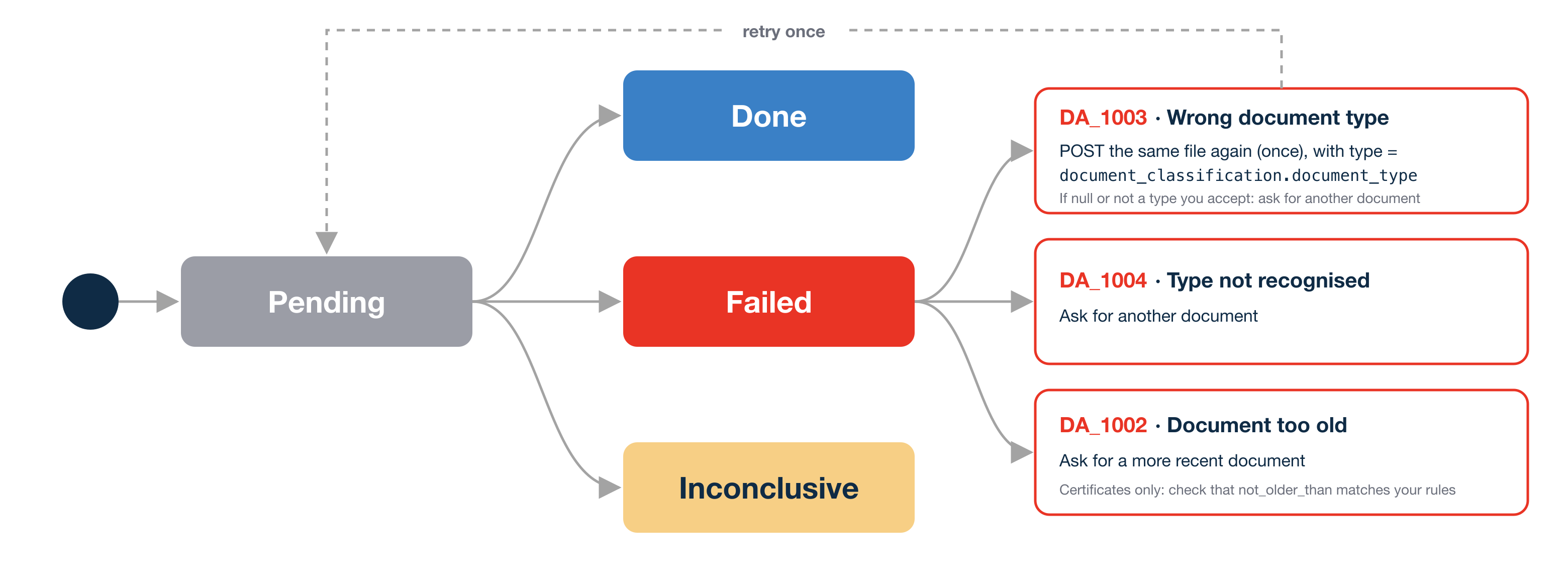
Many failed analyses do not come from a bad document. They come from how your flow sends it: the wrong type for the file, or an acceptance window shorter than the document you actually accept.
This page lists the changes to make in your integration. Each one shows the failure it prevents, an example of a correct call, and what to do if the analysis still fails, based on its status code.
It is written for the back-end teams who call the API. For the API call itself, see Request a Document Trust Analysis.
Why analyses fail
| Status code | Meaning | What to do |
|---|---|---|
DA_1003 | The document type does not match the type you sent | Read document_classification.document_type and send the file again with that type (see 1.) |
DA_1004 | No document type could be recognised | Ask your user for another document |
DA_1002 | The document is expired, or, for certificates, older than your acceptance window | Certificates only: set issuance_date.not_older_than to the window you really accept (see 3.) |
Document type
1. Use the classification to recover from a wrong type
Prevents: wrong document type (DA_1003).
When you send a type, the analysis first checks that the file is a document of that type. If it is not, the analysis fails with DA_1003, and no other check runs: a valid company_certificate (Kbis) sent as rne_certificate fails, even though the document itself is fine.
The response tells you what we recognised, in the document_classification node:
{
  "id": "0f6c3b1e-…",
  "status": "failed",
  "status_codes": ["DA_1003"],
  "type": "rne_certificate",
  "document_classification": {
    "document_type": "company_certificate",
    "country_code": "FR"
  }
}
If it fails with DA_1003: do not ask your user for a new upload. Send the same file again, with type set to document_classification.document_type:
curl --request POST \
  --url https://api-sandbox.yousign.app/v3/document_analyses \
  --header 'Authorization: Bearer <API_KEY>' \
  --form '[email protected]' \
  --form 'type=company_certificate' \
  --form 'analysis_type[extraction]=true'
Before you retry, check that:
document_classification.document_typeis notnull. Anullvalue means we classified the document but recognised none of the supported types: ask your user for another document.- The recognised type is one your process accepts. If you asked for a company certificate and we recognised a rne certificate, the retry will succeed, but on a document you did not want. Retry only when the recognised type is in the list of types you accept, otherwise ask for another document.
- You retry only once. A second
DA_1003on the recognised type means the document is ambiguous: route it to a manual review.
A
nulldocument_classificationnode means no classification ran at all, for example when the analysis failed before the document was read.
2. Let users choose the document type when they can upload several
Prevents: wrong document type (DA_1003).
If your upload screen accepts several kinds of documents (a Kbis or an INSEE notice, for example), let your users pick the type and send their choice. A single hard-coded type makes every other valid document fail.
Certificate acceptance window
3. Set the acceptance window you really apply
Prevents: document too old (DA_1002).
The issuance date check is only available on certificate types: company_certificate, business_registration_certificate and rne_certificate. It is not supported on any other document type.
On these types, the analysis checks the document's issuance date. By default, a document issued more than 3 months ago fails with DA_1002.
If your compliance process accepts older documents, say so in the call with checks[issuance_date][not_older_than], in months, from 1 to 24:
curl --request POST \
  --url https://api-sandbox.yousign.app/v3/document_analyses \
  --header 'Authorization: Bearer <API_KEY>' \
  --form '[email protected]' \
  --form 'type=company_certificate' \
  --form 'analysis_type[extraction]=true' \
  --form 'checks[issuance_date][not_older_than]=6'
With not_older_than=6, a Kbis issued 5 months ago passes, while it fails by default.
The response shows the date read on the document and the check result:
"checks": {
  "issuance_date": {
    "extracted": "2026-05-12",
    "expected": { "not_older_than": 6 },
    "match_level": "exact"
  }
}
If it fails with DA_1002: the document is older than your window. You cannot fix the document: ask your user for a more recent one, and show them the date we read (extracted_from_document.issuance_date) so they know why it was refused.
Set the window once, from your compliance rules, not per user. Raising it after a
DA_1002to make an analysis pass defeats the purpose of the check.
In a nutshell
Fraud detection level
4. Pick the level your documents actually need
Prevents: fraud missed on documents standard cannot read.
analysis_type[fraud_level] sets how deep the fraud detection goes. It takes none (the default: no fraud detection runs), standard or advanced.
standard | advanced | |
|---|---|---|
| Reads | The PDF file itself: metadata, internal structure and revision history, text and fonts, e-signature and 2D-Doc | The same zones, in more depth, plus the pixels of the image |
| How | Rule-based checks built by Yousign, no AI | AI models, a reference library of genuine issuer templates and known fakes, up to 600+ detectors |
| Usable on | Native PDFs. On a scan or a photo it flags the format, but cannot assess the content | Native PDFs, scans and photos |
| Catches | The most common tampering | Sophisticated fakes: retouched images, AI-generated documents, forgeries already seen elsewhere |
The difference is what is left to analyse. standard inspects how the PDF file is built, so it needs a native PDF: the file as its issuer generated it. Once a document has been photographed, scanned or screenshotted, that structure is gone and only pixels remain, so standard has no structure left to inspect. advanced adds pixel-level image analysis and AI models, which makes it the only level that can judge the content of an image.
standardis not blind to scans and photos: it detects them. It cannot analyse the image, but it returns an indicator infraud_risk_analysis.indicatorstelling you the file is a reproduction rather than the original the issuer generated. Handle that indicator in your flow: ask the user for the original PDF, or send that document toadvanced.
Choose per document type, not once for your whole integration. The same journey often mixes both:
- The file is a scan, a photo or a screenshot, including a photo saved as
.pdf→advanced. - The file is a native PDF in a fixed format from a known issuer, such as a Kbis or a bill carrying a 2D-Doc →
standardis enough. - The native PDF format varies from one issuer to the next, such as invoices, payslips or employer letters, or the decision behind it carries real financial exposure →
advanced.
Two API rules to keep in mind: a fraud-only analysis (
analysis_type[extraction]=false, notype) must useadvanced, and fraud detection is not supported ontype=tax_notice.
Related pages
Updated 25 days ago